On this page
What a .rbxm file is
A .rbxm file holds Roblox objects (parts, models, scripts, UI) that you add to a place you already have. Props, vehicles, weapons, UI kits, scripts and asset packs often come as one. A .rbxmx is the same thing saved as text.
Insert it
Open your place
Open the game you're adding it to in Roblox Studio. No game yet? Start a new Baseplate.
Find the Explorer
The Explorer lists everything in your place. If you can't see it, open it from the View tab, along with Properties.
Insert from File
Right-click Workspace in the Explorer, choose Insert from File, and pick the .rbxm. You can also drag the file into the Studio window.
Find it in the world
The new model is selected in the Explorer. Press F to move the camera to it.
Put it in place
Move it with the Move tool. Tick Anchored in Properties on parts that should stay still; leave vehicles and anything that moves the way the seller set them up.
Where each kind of asset goes
Right-click the right place in the Explorer before you choose Insert from File:
Map pieces, props, buildings
Insert it intoWorkspace
WhyEverything in Workspace is in the world players see.
Menus, HUDs, shop screens
Insert it intoStarterGui
WhyEach player gets a copy when they join.
Server scripts
Insert it intoServerScriptService
WhyThey run on the server, out of players' reach.
Player scripts (LocalScripts)
Insert it intoStarterPlayer, then StarterPlayerScripts
WhyThey run on each player's device.
Shared code and remotes
Insert it intoReplicatedStorage
WhyBoth the server and players can reach them.
Things scripts copy in later
Insert it intoServerStorage
WhyKept on the server until a script needs them.
| What you got | Insert it into | Why |
|---|---|---|
| Map pieces, props, buildings | Workspace | Everything in Workspace is in the world players see. |
| Menus, HUDs, shop screens | StarterGui | Each player gets a copy when they join. |
| Server scripts | ServerScriptService | They run on the server, out of players' reach. |
| Player scripts (LocalScripts) | StarterPlayer, then StarterPlayerScripts | They run on each player's device. |
| Shared code and remotes | ReplicatedStorage | Both the server and players can reach them. |
| Things scripts copy in later | ServerStorage | Kept on the server until a script needs them. |
Read the listing's setup notes first: many systems need their pieces in set places, and the seller knows where.
Models to start with
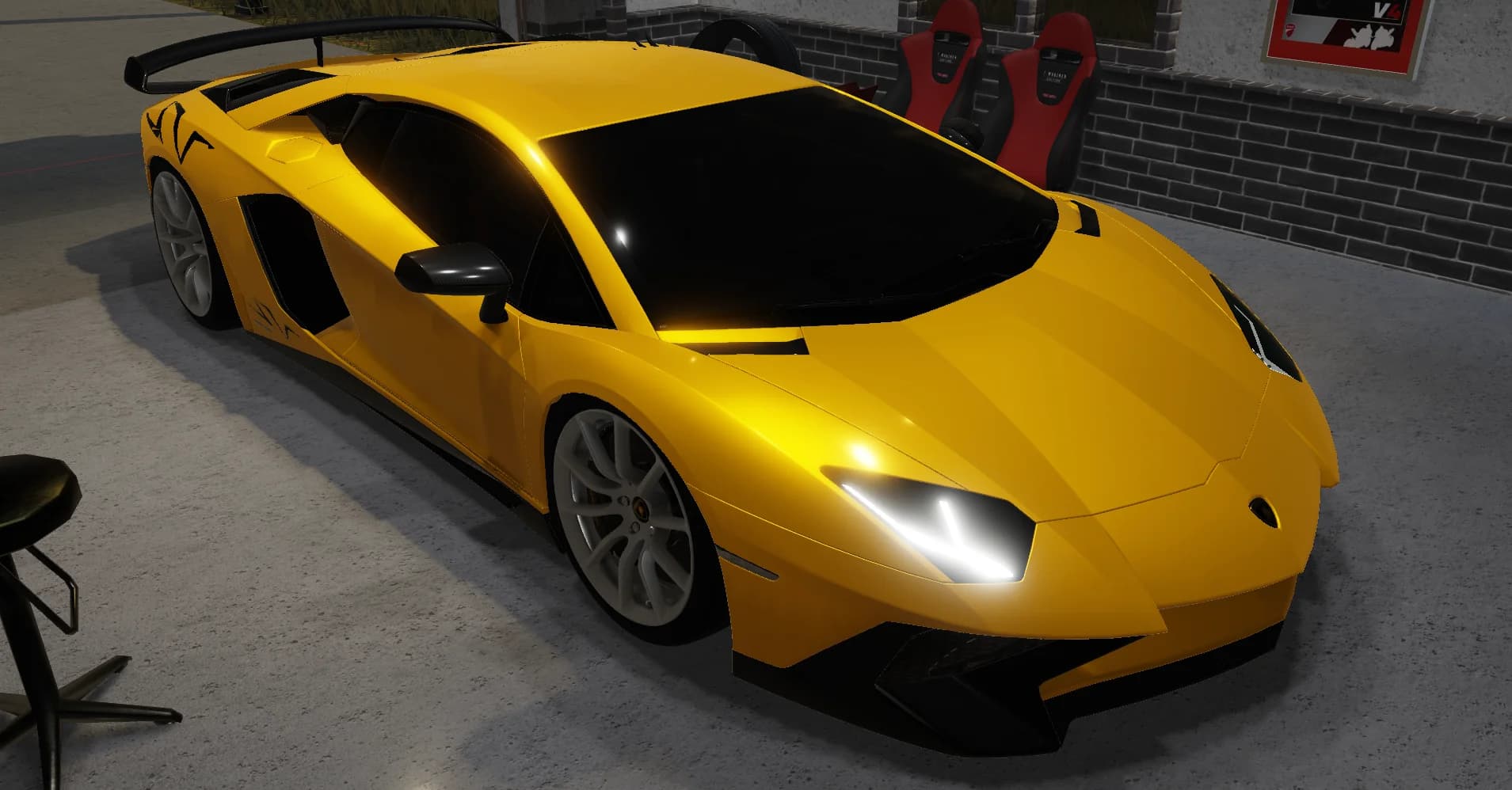
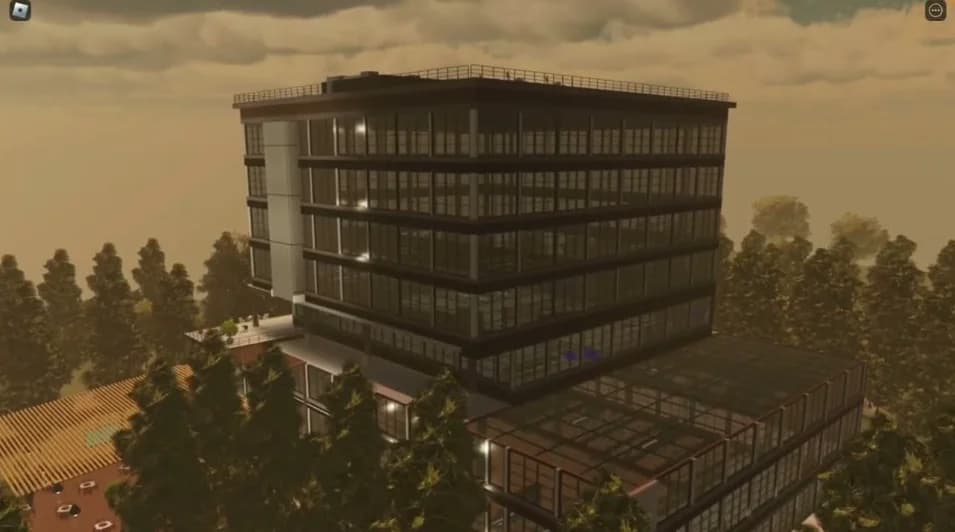
Props, vehicles and weapons from Forja creators.

Keep it for your other games
Keep the .rbxm somewhere safe and insert it again whenever you need it. Or right-click the model in the Explorer and choose Save to Roblox: it's then in your Toolbox, in every place you open. Keep it private: a model you bought isn't yours to share.
If something's wrong
- It falls apart or drops through the floor when you press Play: its parts aren't anchored or welded. Anchor the parts that should stay still.
- Its scripts don't run: check it's in the right place (the table above) and that each script's Enabled box is ticked in Properties.
- You can't find it: type its name in the box at the top of the Explorer, or select it and press F.
- It's the wrong size: select the whole model (not one part) and use the Scale tool.
Questions
Can I open a .rbxm file on its own?
Not directly: a model goes into a place. Open any place (a new Baseplate works) and insert it there.
.rbxm or .rbxmx: which is better?
They hold the same thing. A .rbxm is smaller; a .rbxmx is text, so it's easier to read through or keep in Git.
Can I import .fbx or .obj files the same way?
No. 3D meshes come in through Studio's Import 3D tool. A .rbxm is already made of Roblox objects, so it goes in with Insert from File.
Where do UI kits go?
In StarterGui. See how to add a UI kit to your game.